
Jupyter notebooks as Markdown documents, Julia, Python or R scripts

Project description











Have you always wished Jupyter notebooks were plain text documents? Wished you could edit them in your favorite IDE? And get clear and meaningful diffs when doing version control? Then... Jupytext may well be the tool you're looking for!
Jupytext is a plugin for Jupyter that can save Jupyter notebooks as either
- Markdown files (or MyST Markdown files, or R Markdown documents)
- Scripts in many languages.
Use cases
Common use cases for Jupytext are:
- Doing version control on Jupyter Notebooks
- Editing, merging or refactoring notebooks in your favorite text editor
- Applying Q&A checks on notebooks.
Install
You can install Jupytext with
pip install jupytext- or
conda install jupytext -c conda-forge.
Please note that Jupytext includes an extension for Jupyter Lab. In the latest version of Jupytext, this extension is compatible with Jupyter Lab >= 3.0 only. If you use Jupyter Lab 2.x, please either stay with Jupytext 1.8.2, or install, on top of the latest pip or conda version of Jupytext, a version of the extension that is compatible with Jupyter Lab 2.x:
jupyter labextension install jupyterlab-jupytext@1.2.2 # For Jupyter Lab 2.x
Then, restart your Jupyter server (for more installation details, see the install section in the documentation).
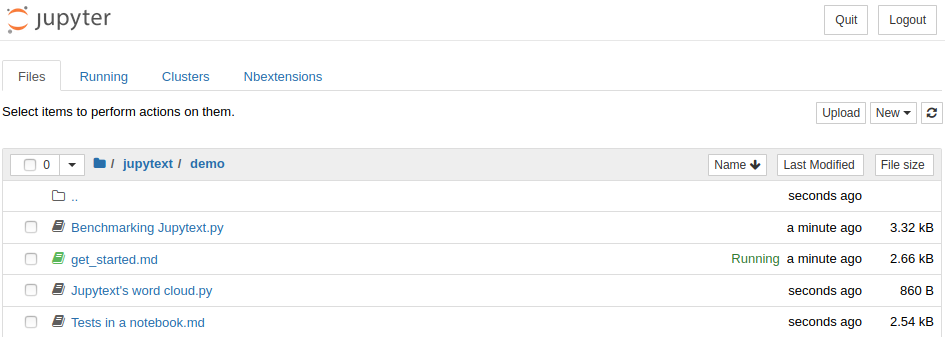
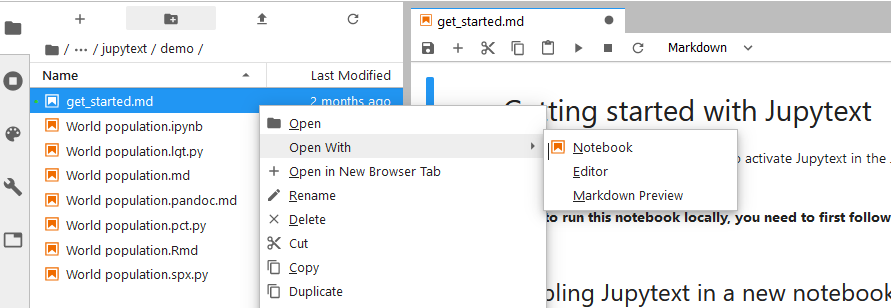
When Jupytext is installed, .py and .md files have a notebook icon. And you can really open and run these files as notebooks
With a click on the text file in Jupyter Notebook

With a right click and open with notebook in Jupyter Lab
Paired notebooks
The most convenient way to use Jupytext is probably through paired notebooks.
To pair a given .ipynb or text notebook to an additional notebook format, use either
the "pair notebook with..." commands in Jupyter Lab

the "pair notebook with..." menu entries in Jupyter Notebook

jupytext at the command line
with e.g.
jupytext --set-formats ipynb,py:percent notebook.ipynb
see the documentation.
or a local or global jupytext.toml configuration file.
with e.g. the following content:
formats = "ipynb,py:percent"
see the documentation.
When you save a paired notebook in Jupyter, both the .ipynb file and the text version are updated on disk.
When a paired notebook is opened or reloaded in Jupyter, the input cells are loaded from the text file, and combined with the output cells from the .ipynb file.
You can edit the text representation of the notebook in your favorite editor, and get the changes back in Jupyter by simply reloading the notebook (Ctrl+R in Jupyter Notebook, "reload notebook" in Jupyter Lab). And the changes are propagated to the .ipynb file when you save the notebook.
Alternatively, you can synchronise the two representations by running jupytext --sync notebook.ipynb at the command line.
Which text format?
Jupytext implements many text formats for Jupyter Notebooks. If your notebook is mostly made of code, you will probably prefer to save it as a script:
- Use the percent format, a format with explicit cell delimiters (
# %%), supported by many IDE (Spyder, Hydrogen, VS Code, PyCharm and PTVS) - Or use the light format, if you prefer to see fewer cell markers.
If your notebook contains more text than code, if you are writing a documentation or a book, you probably want to save your notebook as a Markdown document
- Use the Jupytext Markdown format if you wish to render your notebook as a
.mdfile (without its outputs) on GitHub - Use the MyST Markdown format, a markdown flavor that “implements the best parts of reStructuredText”, if you wish to render your notebooks using Sphinx or Jupyter Book.
- Use the R Markdown format if you want to open your Jupyter Notebooks in RStudio.
More resources?
If you're new to Jupytext, you may want to start with the FAQ or with the Tutorials, or with this short introduction to Jupytext: 
Release history Release notifications | RSS feed


Download files
Download the file for your platform. If you're not sure which to choose, learn more about installing packages.
Source Distribution
Built Distribution
Filter files by name, interpreter, ABI, and platform.
If you're not sure about the file name format, learn more about wheel file names.
Copy a direct link to the current filters
File details
Details for the file jupytext-1.11.1.tar.gz.
File metadata
- Download URL: jupytext-1.11.1.tar.gz
- Upload date:
- Size: 682.0 kB
- Tags: Source
- Uploaded using Trusted Publishing? No
- Uploaded via: twine/3.4.1 importlib_metadata/3.7.3 pkginfo/1.7.0 requests/2.25.1 requests-toolbelt/0.9.1 tqdm/4.59.0 CPython/3.7.10
File hashes
| Algorithm | Hash digest | |
|---|---|---|
| SHA256 |
fa5bd965a5e5cb952714fd47d2ff5470910b2ef2f118e9a890de38cc706c934a
|
|
| MD5 |
d93cdaccbc51837079649897f158e11c
|
|
| BLAKE2b-256 |
13b1a034437caf17dab52ca6f920ca191a3ef0fd6121a854f6bd4f916af63e3b
|
File details
Details for the file jupytext-1.11.1-py3-none-any.whl.
File metadata
- Download URL: jupytext-1.11.1-py3-none-any.whl
- Upload date:
- Size: 291.5 kB
- Tags: Python 3
- Uploaded using Trusted Publishing? No
- Uploaded via: twine/3.4.1 importlib_metadata/3.7.3 pkginfo/1.7.0 requests/2.25.1 requests-toolbelt/0.9.1 tqdm/4.59.0 CPython/3.7.10
File hashes
| Algorithm | Hash digest | |
|---|---|---|
| SHA256 |
b3b66e08917b049f112656cf104d4329d33a140ff325d5e65d1e4f03c96cc93e
|
|
| MD5 |
984f0277d48f0f4a4749fb0e27062315
|
|
| BLAKE2b-256 |
1e1464f64fbb21c2dddfe89c417c17bd8c83642c5a6b5ee9c3de8e842596e762
|






