
Image Polygonal Annotation with Python

Project description

labelme
Image Polygonal Annotation with Python




Description
Labelme is a graphical image annotation tool inspired by http://labelme.csail.mit.edu.
It is written in Python and uses Qt for its graphical interface.


VOC dataset example of instance segmentation.


Other examples (semantic segmentation, bbox detection, and classification).

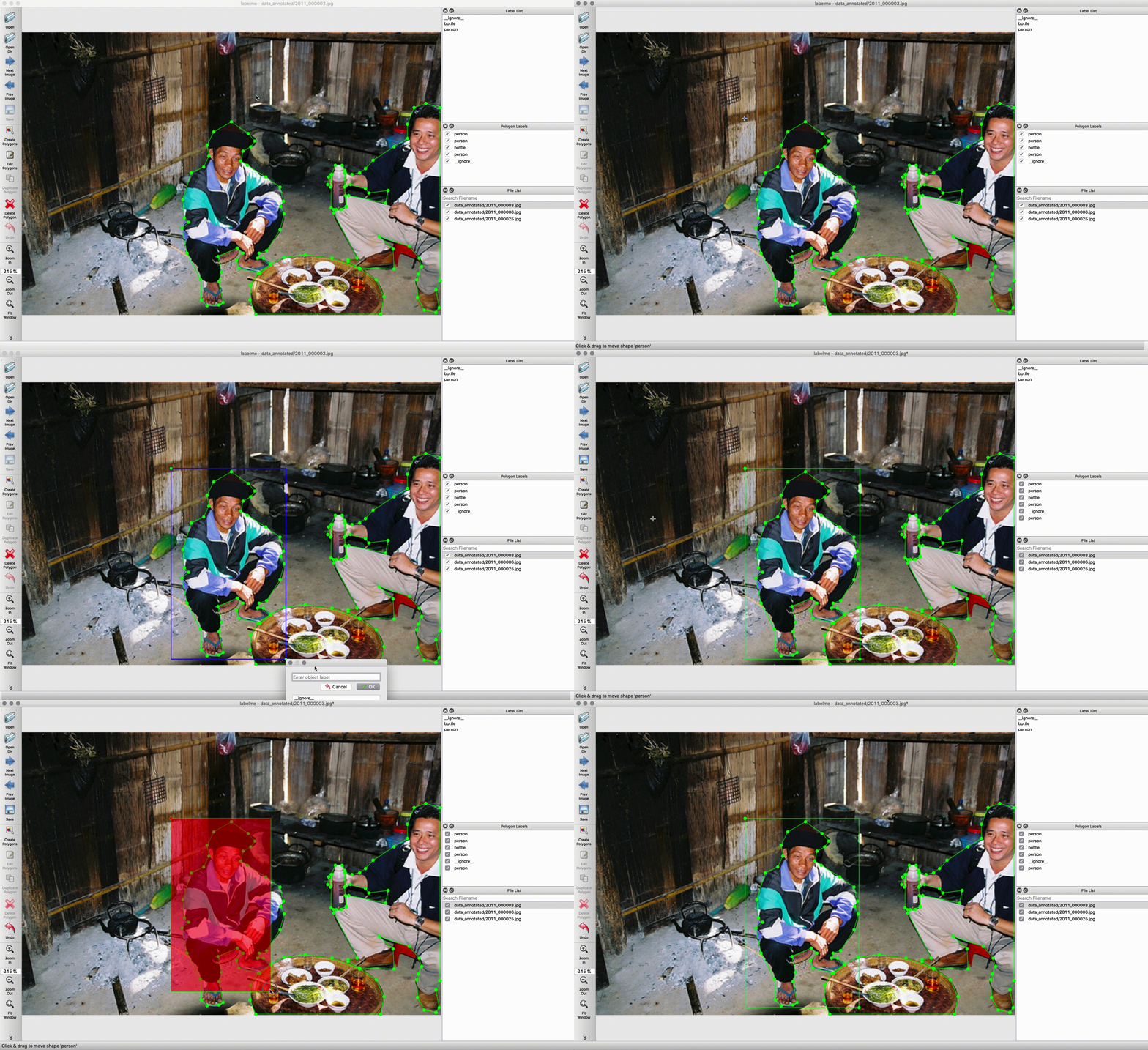
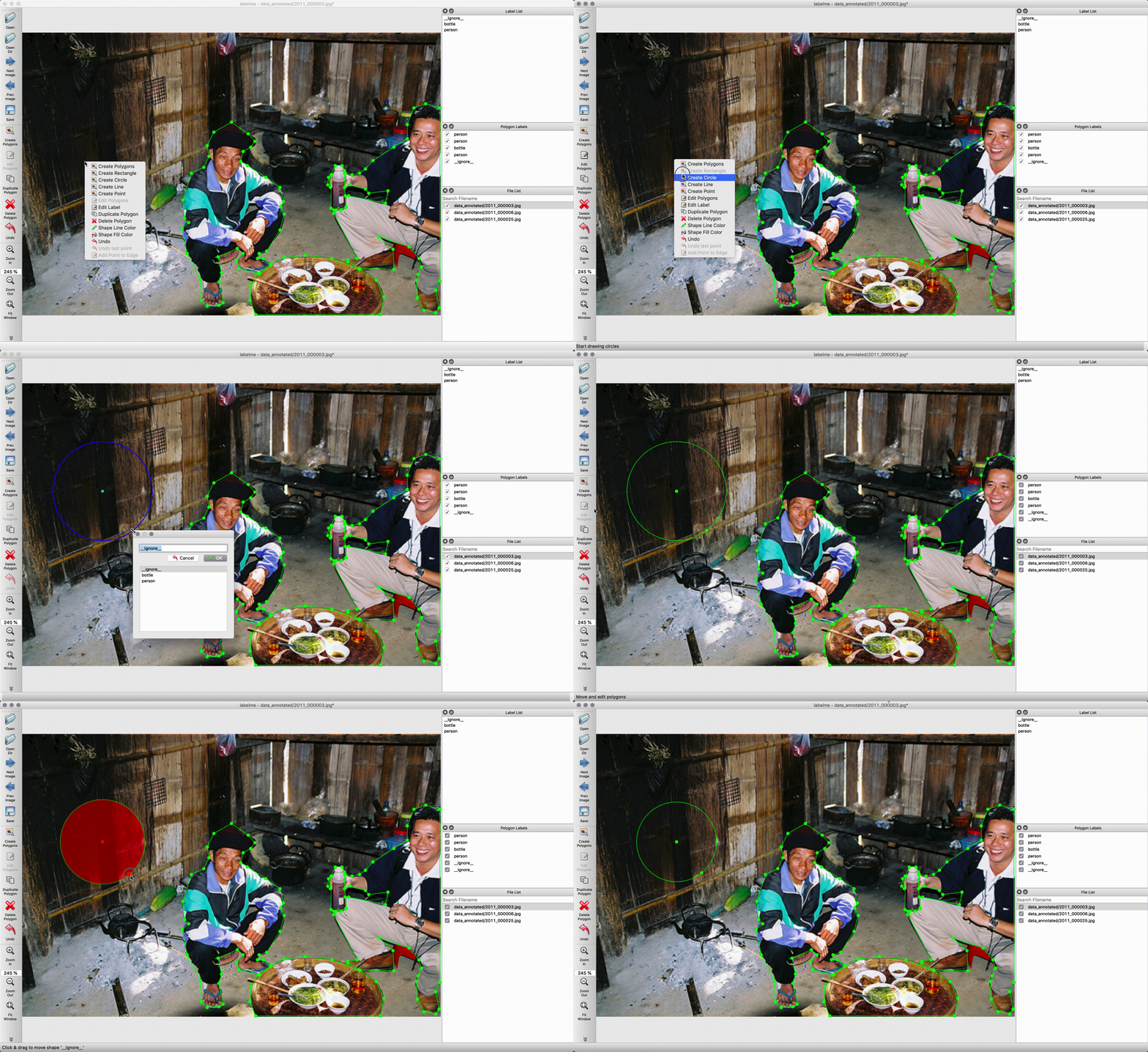
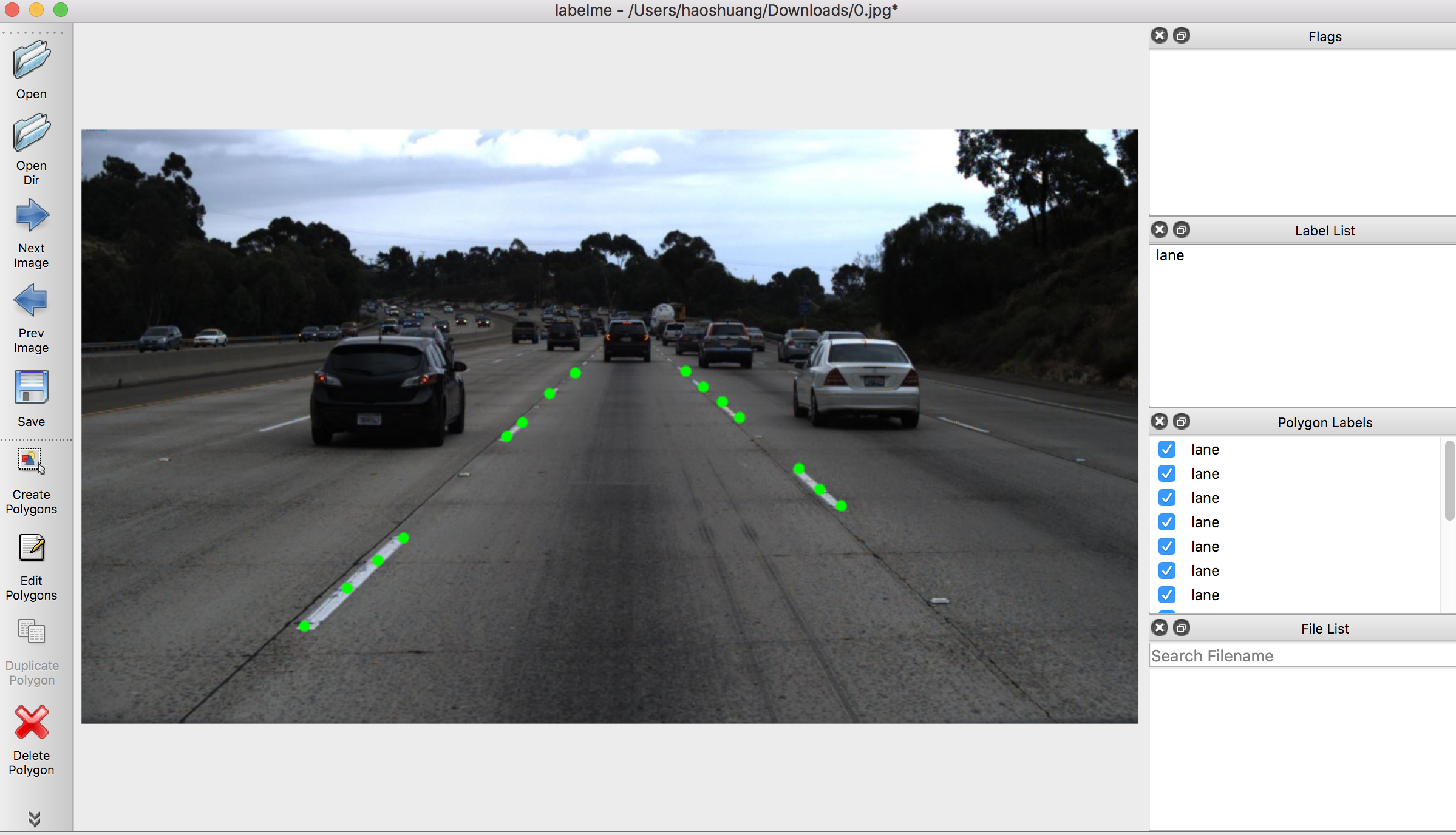
Various primitives (polygon, rectangle, circle, line, and point).
Features
- Image annotation for polygon, rectangle, circle, line and point. (tutorial)
- Image flag annotation for classification and cleaning. (#166)
- Video annotation. (video annotation)
- GUI customization (predefined labels / flags, auto-saving, label validation, etc). (#144)
- Exporting VOC-format dataset for semantic/instance segmentation. (semantic segmentation, instance segmentation)
- Exporting COCO-format dataset for instance segmentation. (instance segmentation)
Requirements
- Ubuntu / macOS / Windows
- Python2 / Python3
- PyQt4 / PyQt5 / PySide2
Installation
There are options:
- Platform agonistic installation: Anaconda, Docker
- Platform specific installation: Ubuntu, macOS, Windows
Anaconda
You need install Anaconda, then run below:
# python2
conda create --name=labelme python=2.7
source activate labelme
# conda install -c conda-forge pyside2
conda install pyqt
pip install labelme
# if you'd like to use the latest version. run below:
# pip install git+https://github.com/wkentaro/labelme.git

# python3
conda create --name=labelme python=3.6
source activate labelme
# conda install -c conda-forge pyside2
# conda install pyqt
# pip install pyqt5  # pyqt5 can be installed via pip on python3
pip install labelme
# or you can install everything by conda command
# conda install labelme -c conda-forge
Docker
You need install docker, then run below:
# on macOS
socat TCP-LISTEN:6000,reuseaddr,fork UNIX-CLIENT:\"$DISPLAY\" &
docker run -it -v /tmp/.X11-unix:/tmp/.X11-unix -e DISPLAY=docker.for.mac.host.internal:0 -v $(pwd):/root/workdir wkentaro/labelme

# on Linux
xhost +
docker run -it -v /tmp/.X11-unix:/tmp/.X11-unix -e DISPLAY=:0 -v $(pwd):/root/workdir wkentaro/labelme
Ubuntu
# Ubuntu 14.04 / Ubuntu 16.04
# Python2
# sudo apt-get install python-qt4  # PyQt4
sudo apt-get install python-pyqt5  # PyQt5
sudo pip install labelme
# Python3
sudo apt-get install python3-pyqt5  # PyQt5
sudo pip3 install labelme
Ubuntu 19.10+ / Debian (sid)
sudo apt-get install labelme
macOS
# macOS Sierra
brew install pyqt  # maybe pyqt5
pip install labelme  # both python2/3 should work

# or install standalone executable / app
# NOTE: this only installs the `labelme` command
brew install wkentaro/labelme/labelme
brew cask install wkentaro/labelme/labelme
Windows
Install Anaconda, then in an Anaconda Prompt run:
# python3
conda create --name=labelme python=3.6
conda activate labelme
pip install labelme
Usage
Run labelme --help for detail.
The annotations are saved as a JSON file.
labelme  # just open gui

# tutorial (single image example)
cd examples/tutorial
labelme apc2016_obj3.jpg  # specify image file
labelme apc2016_obj3.jpg -O apc2016_obj3.json  # close window after the save
labelme apc2016_obj3.jpg --nodata  # not include image data but relative image path in JSON file
labelme apc2016_obj3.jpg \
  --labels highland_6539_self_stick_notes,mead_index_cards,kong_air_dog_squeakair_tennis_ball  # specify label list

# semantic segmentation example
cd examples/semantic_segmentation
labelme data_annotated/  # Open directory to annotate all images in it
labelme data_annotated/ --labels labels.txt  # specify label list with a file
For more advanced usage, please refer to the examples:
- Tutorial (Single Image Example)
- Semantic Segmentation Example
- Instance Segmentation Example
- Video Annotation Example
Command Line Arguments
--outputspecifies the location that annotations will be written to. If the location ends with .json, a single annotation will be written to this file. Only one image can be annotated if a location is specified with .json. If the location does not end with .json, the program will assume it is a directory. Annotations will be stored in this directory with a name that corresponds to the image that the annotation was made on.- The first time you run labelme, it will create a config file in
~/.labelmerc. You can edit this file and the changes will be applied the next time that you launch labelme. If you would prefer to use a config file from another location, you can specify this file with the--configflag. - Without the
--nosortlabelsflag, the program will list labels in alphabetical order. When the program is run with this flag, it will display labels in the order that they are provided. - Flags are assigned to an entire image. Example
- Labels are assigned to a single polygon. Example
FAQ
- How to convert JSON file to numpy array? See examples/tutorial.
- How to load label PNG file? See examples/tutorial.
- How to get annotations for semantic segmentation? See examples/semantic_segmentation.
- How to get annotations for instance segmentation? See examples/instance_segmentation.
Testing
pip install hacking pytest pytest-qt
flake8 .
pytest -v tests
Developing
git clone https://github.com/wkentaro/labelme.git
cd labelme

# Install anaconda3 and labelme
curl -L https://github.com/wkentaro/dotfiles/raw/master/local/bin/install_anaconda3.sh | bash -s .
source .anaconda3/bin/activate
pip install -e .
How to build standalone executable
Below shows how to build the standalone executable on macOS, Linux and Windows.
Also, there are pre-built executables in
the release section.
# Setup conda
conda create --name labelme python==3.6.0
conda activate labelme

# Build the standalone executable
pip install .
pip install pyinstaller
pyinstaller labelme.spec
dist/labelme --version
Acknowledgement
This repo is the fork of mpitid/pylabelme, whose development has already stopped.
Cite This Project
If you use this project in your research or wish to refer to the baseline results published in the README, please use the following BibTeX entry.
@misc{labelme2016,
  author =       {Kentaro Wada},
  title =        {{labelme: Image Polygonal Annotation with Python}},
  howpublished = {\url{https://github.com/wkentaro/labelme}},
  year =         {2016}
}
Release history Release notifications | RSS feed


Download files
Download the file for your platform. If you're not sure which to choose, learn more about installing packages.
Source Distribution
File details
Details for the file labelme-4.5.0.tar.gz.
File metadata
- Download URL: labelme-4.5.0.tar.gz
- Upload date:
- Size: 1.5 MB
- Tags: Source
- Uploaded using Trusted Publishing? No
- Uploaded via: twine/1.13.0 pkginfo/1.5.0.1 requests/2.21.0 setuptools/46.0.0 requests-toolbelt/0.8.0 tqdm/4.31.1 CPython/3.7.7
File hashes
| Algorithm | Hash digest | |
|---|---|---|
| SHA256 |
fcab2ce7cece10dbba51ddeb486177039399301ce48341e09aec0fa96a4d636a
|
|
| MD5 |
11295e6056f3a79f7c470b890c6488c8
|
|
| BLAKE2b-256 |
4170e6ece2d9b10d8def5f9d755cbcd544ac513092ba3057826f81afa91b4ac9
|






