
Litrepl evaluates code from LaTeX/Markdown verbatim sections.

Project description
⌨️ LitRepl ⌨️
[Changelog](./CHANGELOG.md) | [Installation](#-installation) | [Usage](#basic-execution) | [Gallery](#-gallery) [](#-coverage-report)

|
Preprint: (2025, Sergei Mironov) Litrepl: Literate Paper Processor Promoting Transparency More Than Reproducibility arXiv:2501.10738 |
Markdown _(Example [[MD]](./doc/example.md))_ **|** [LaTeX](https://www.latex-project.org/) _(Examples [[TEX]](./doc/example.tex)[[PDF]](./doc/example.pdf))_ * **Interpreters**
[Sh](https://en.wikipedia.org/wiki/Bourne_shell) **|** [Bash](https://www.gnu.org/software/bash/) **|** [Python](https://www.python.org/) **|** [IPython](https://ipython.org/) **|** [Aicli](https://github.com/sergei-mironov/aicli) * **Editor integration**
[Vim](https://www.vim.org/scripts/script.php?script_id=6117) _(plugin source included)_ ✅ Requirements --------------- * **POSIX-compatible OS**, typically a Linux. The tool relies on POSIX operations, notably pipes, and depends on certain Shell commands. * **lark-parser** and **psutil** Python packages. * **[Socat](http://www.dest-unreach.org/socat/)** (Optional) Needed for `litrepl repl` and Vim's `LTerm` commands to work. 📚 Contents -----------
- ⚙️ Installation
- 🚀 Usage
- General Concepts
- Application Scenarios
- Command Line, Foreground Evaluation
- Command Line, Detecting Python Exceptions
- GNU Make, Evaluating Code Sections in Project Documentation
- Vim, Setting Up Keybindings
- Vim, Inserting New Sections
- Vim, Running the Initial Section After Interpreter Restart
- Vim, Evaluating Selected Text
- Vim, Calling for AI on a visual selection
- In-Depth Reference
- 🏗️ Development Guidelines
- 🎥 Gallery
- 🖼️ Coverage report
- 💡 Technical Insights
- 🚫 Known Limitations
- Related Tools and Projects
- Considerations for Third-Party Tools
⚙️ Installation
This repository hosts the Litrepl tool, a standalone command-line application and an interface plugin for the Vim editor. The author's preferred installation method is using Nix, but if you choose not to use it, you'll need to install one or both components separately. Below, we outline several common installation methods.
Release versions, from Pypi and Vim.org
pip install litrepl- Download the
litrepl.vimfrom the vim.org script page and put it into your~/.vim/pluginfolder.
Latest versions, from Git, using Pip and Vim-Plug
- Install the
litreplPython package with pip:$ pip install --user git+https://github.com/sergei-mironov/litrepl $ litrepl --version
- Install the Vim plugin by adding the following line between the
plug#beginandplug#endlines of your.vimrcfile:Plug 'https://github.com/sergei-mironov/litrepl' , { 'rtp': 'vim' }
Note:rtpsets the custom vim-plugin source directory of the plugin.
Latest versions, from source, using Nix
The repository offers a suite of Nix expressions designed to optimize installation and development processes on systems that support Nix. Consistent with standard practices in Nix projects, the flake.nix file defines the source dependencies, while the default.nix file identifies the build targets.
For testing, the vim-demo expression is a practical choice. It includes a
pre-configured Vim setup with several related plugins, including Litrepl. To
build this target, use the command nix build '.#vim-demo'. Once the build is
complete, you can run the editor with ./result/bin/vim-demo.
To add the Litrepl tool to your system profile, first include the Litrepl flake
in your flake inputs. Then, add litrepl-release to
environment.systemPackages or to your custom environment.
To include the Litrepl Vim plugin, add vim-litrepl-release to the vimPlugins
list within your vim_configurable expression.
Regardless of the approach, Nix will manage all necessary dependencies automatically.
Nix are used to open the development shell, see the Development section.
Latest versions, from source, using Pip
The Litrepl application might be installed with pip install . run from the
project root folder. The Vim plugin part requires hand-copying
./vim/plugin/litrepl.vim and ./vim/plugin/litrepl_extras.vim to the ~/.vim
config folder.
The Nix-powered installation methods install the Socat tool automatically. For
other installation methods, use your system pacakge manager to install it. For
example, Ubuntu users might run sudo apt-get install socat.
The Python interpreter is usually installed by default, along with the pip
installer. To install ipython, you can use pip install ipython. For the
aicli interpreter, you can run pip install sm_aicli, or refer to the project page for additional installation
methods.
🚀 Usage
General Concepts
The Litrepl tool identifies code and result sections within a text document. It processes the code by sending it to the appropriate interpreters and populates the result sections with their responses. The interpreters remain active in the background, ready to handle new inputs.
Litrepl supports subsets of Markdown and LaTeX formatting in order to recognize the sections. Some aspects of the recognized grammars, such as section labels, could be configured.
Basic Execution
Litrepl searches for verbatim code sections followed by zero or more result
sections. In Markdown documents, the Python code is any triple-quoted section
with a pre-configured label such as python. The result is any triple-quoted
result section. In LaTeX documents, sections are marked with
\begin{...}\end{...} environments correspondingly.
The primary command for evaluating formatted documents is litrepl eval-sections. Consider a hello.md document:
``` python
print('Hello Markdown!')
```
``` result
```
You pass it to Litrepl using:
$ cat hello.md | litrepl eval-sections > result.md
The result.md will have all sections filled in correctly.
``` python
print('Hello Markdown!')
```
``` result
Hello Markdown!
```
- For additional details on Markdown formatting, refer to Formatting Markdown documents
Similarly, in a LaTeX document, we format code and result sections as follows:
\begin{python}
print('Hello LaTeX!')
\end{python}

\begin{result}
Hello LaTeX!
\end{result}
- LaTeX documents require a preamble introducing python/result environments to the TeX processor. For more information, see Formatting LaTeX documents.
By default, Litrepl tried to guess the format of the input document. Use the
--filetype=(latex|markdown) option to set the format explicitly:
$ cat doc.md | litrepl --filetype=markdown eval-sections
$ cat doc.tex | litrepl --filetype=latex eval-sections
- The main Vim command for code section evaluation is
:LEval. By default, it executes the section at the cursor. To execute all sections in a document, use:LEval all.
Selecting Sections for Execution
By default, litrepl eval-sections evaluates all sections in a document. To
evaluate only specific sections, the range argument should be specified. The
overall syntax is litrepl eval-sections [RANGE], where RANGE can be:
N: Represents a specific code section to evaluate, with the following possible formats:- A number starting from
0. $symbol, indicating the last section.L:C, referring to the line and column position. Litrepl calculates the section number based on this position.
- A number starting from
N..N: Represents a range of sections, determined using the rules mentioned above.
Some examples:
$ litrepl eval-sections '0'       # First section in a document
$ litrepl eval-sections '3..$'    # Sections from fourth section (zero based) to the last one
$ litrepl eval-sections '34:1..$' # Sections starting from line 34 column 1
- The Vim command
:LEvalaccepts similar syntax and also recognizes specific keywordsall,above, andbelow. These keywords allow you to evaluate all sections, only those above the cursor, or just the ones below the cursor, respectively.
Managing Interpreter Sessions
Each interpreter session uses an auxiliary directory where Litrepl stores filesystem pipes and other runtime data.
By default, the auxiliary directory path is derived from the working directory name (for Vim, this defaults to the directory of the current file).
This behavior can be configured by:
- Setting the working directory with
LITREPL_WORKDIRenvironment variable or--workdir=DIRcommand-line argument (this may also affect the current directory of the interpreters), or - Explicitly setting the auxiliary directory with
LITREPL_<CLASS>_AUXDIRenvironment variable or--<class>-auxdir=DIRcommand-line argument, where<class>stands for eitherpython,aiorsh.
The commands litrepl start CLASS, litrepl stop [CLASS], and litrepl restart [CLASS] are used to manage interpreter sessions. They accept the interpreter
type to operate on or (for some commands) the keyword all to apply the command
to all interpreters. Add the --<class>-interpteter=CMDLINE to adjust the
command line to run, but be careful - Litrepl adds more arguments to configure
prompts and verbosity to some interpreters, notably to the pythons.
$ litrepl --python-interpreter=ipython start python
$ litrepl --sh-interpreter=/opt/bin/mybash start sh
$ litrepl restart all
$ litrepl stop
- The equivalent Vim commands are
:LStart CLASS,:LStop [CLASS], and:LRestart [CLASS]. For the corresponding Vim configuration variables, see the reference section below.
The litrepl status [CLASS] command queries the information about the currently
running interpreters. The command reveals the process PID and the command-line
arguments. For stopped interpreters, the last exit codes are also listed.
Specifying CLASS prints the status for this class of interpreters only.
$ litrepl status
# Format:
# CLASS  PID      EXITCODE  CMD
python   3900919  -         python3 -m IPython --config=/tmp/litrepl_1000_a2732d/python/litrepl_ipython_config.py --colors=NoColor -i
ai       3904696  -         aicli --readline-prompt=
- The corresponding Vim command is
:LStatus. NoCLASSargument is currently supported.
Asynchronous Processing
Litrepl can generate an output document before the interpreter has finished
processing. If the evaluation takes longer than a timeout, Litrepl leaves a
marker, enabling it to continue from where it was stopped during future runs.
The --timeout=SEC[,SEC] option allows you to set timeouts. The first number
specifies the initial execution timeout in seconds, while the optional second
number sets the timeout for subsequent attempts. By default, both timeouts are
set to infinity.
For instance, executing litrepl --timeout=3.5 eval-sections on the
corresponding program yields:
``` python
from tqdm import tqdm
from time import sleep
for i in tqdm(range(10)):
  sleep(1)
```

``` result
 30%|███       | 3/10 [00:03<00:07,  1.00s/it]
[BG:/tmp/nix-shell.vijcH0/litrepl_1000_a2732d/python/litrepl_eval_5503542553591491252.txt]
```
Upon re-executing the document, Litrepl resumes processing from the marker. Once evaluation concludes, it removes the marker from the output section.
The command litrepl interrupt sends an interrupt signal to the interpreter,
prompting it to return control sooner (with an exception).
- The equivalent Vim commands are
:LEvalAsync(defaulting to a 0.5-second timeout) and:LInterrupt. - The Vim plugin also provides the
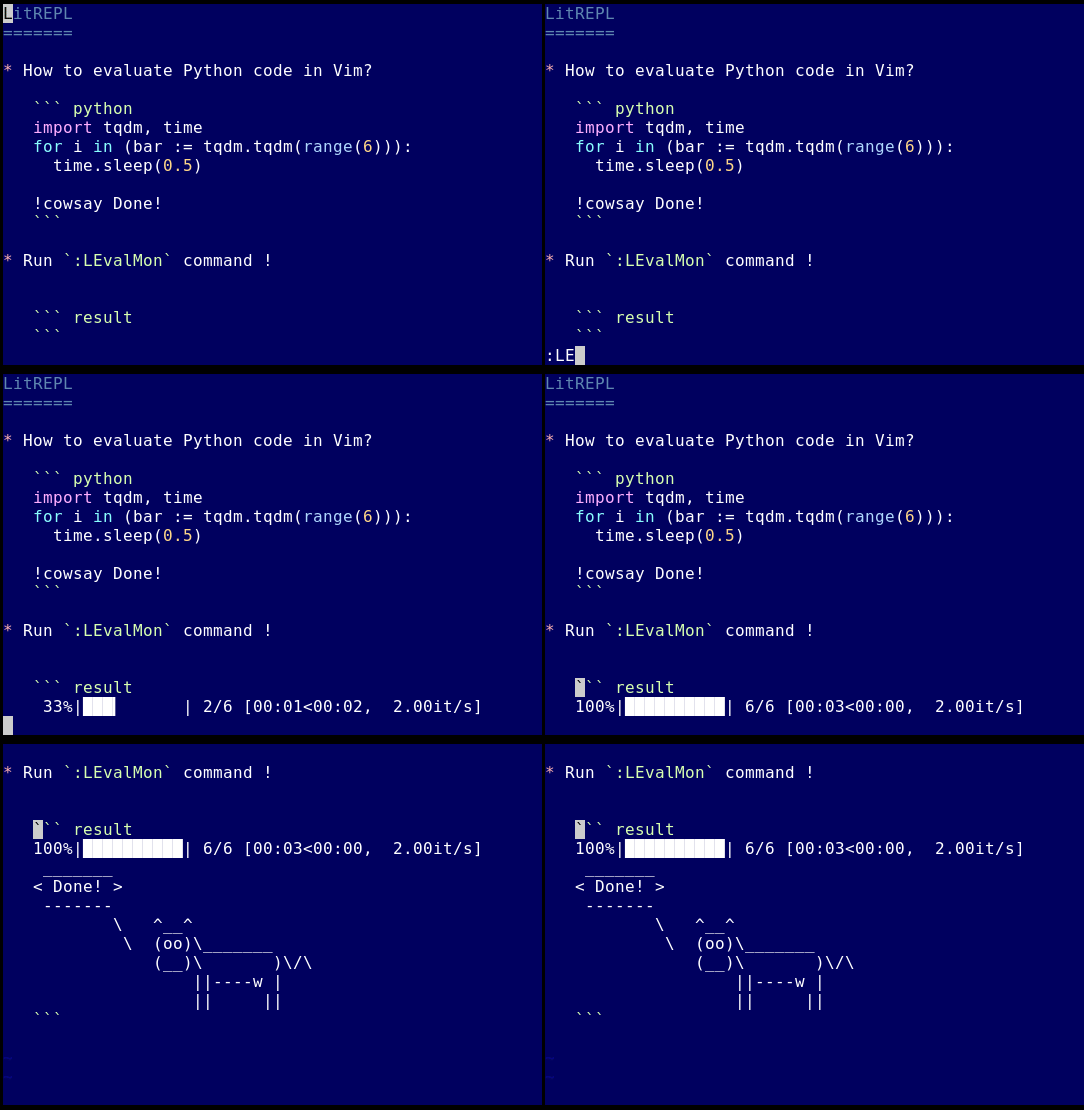
:LEvalMoncommand, which facilitates continuous code evaluation with no delay. Interrupting this with Ctrl+C will make Litrepl return control to the editor, leaving the evaluation ongoing in the background.
Attaching Interpreter Sessions
The command litrepl repl [CLASS] where CLASS specifies interpreter class:
python (the default) ai or sh, attaches to interpreter sessions. For this
command to work, socat tool needs to be
installed on your system. Litrepl blocks the pipes for the time of interaction
so no evaluation is possible while the repl session is active. For Python and
Shell interpreters, the command prompt is disabled which is a current technical
limitation. Use Ctrl+D to safely detach the session. For example:
$ litrepl repl python
Opening the interpreter terminal (NO PROMPTS, USE `Ctrl+D` TO DETACH)
W = 'Hello from repl'
^D
$
Use litrepl eval-code [CLASS] to direct code straight to the interpreter,
bypassing any section formatting steps. In contrast to the repl command,
eval-code mode features prompt detection, allowing the tool to display the
interpreter's response and detach while keeping the session open.
For example, after manually defining the W variable in the example above, it
can be queried as in a typical IPython session.
$ echo 'W' | litrepl eval-code
'Hello from repl'
The eval-code command can be utilized for batch processing and managing
sessions, in a manner similar to how the expect tool is used.
- The equivalent Vim commands are
:LRepl [CLASS]or:LTerm [CLASS]. Both commands open Vim terminal window.
Experimental AI Features
Litrepl experimentally supports Aicli
terminal allowing users to query external language models. In order to try it,
install the interpreter and use ai as the name for code sections. For
low-speed models it might be convenient to use :LEvalMon command to monitor
the text generation in real time.
``` ai
/model gpt4all:"./_models/Meta-Llama-3-8B-Instruct.Q4_0.gguf"
Hi chat! What is your name?
```

``` result
I'm LLaMA, a large language model trained by Meta AI. I'm here to help answer
any questions you might have and provide information on a wide range of topics.
How can I assist you today?
```
All Aicli /-commands like the /model command above are passed as-is to the
interpreter. The /ask command is added automatically at the of each section,
so make sure that ai secions have self-contained questions.
As a pre-processing step, Litrepl can paste text from other sections of the document in place of special reference markers. The markers have the following format:
>>RX<<, whereXis a number - references a section numberX(starting from zero).^^RX^^, whereXis a number - references the sectionXtimes above the current one.vvRXvv, whereXis a number - references the sectionXtimes below the current one.
``` ai
AI, what do you think the following text means?

^^R1^^
```

``` result
Another interesting piece of text!
This is an example of a chatbot introduction or "hello message." It appears to
be written in a friendly, approachable tone, with the goal of establishing a
connection with users.
```
Application Scenarios
Command Line, Foreground Evaluation
When performing batch processing of documents, it might be necessary to initiate
a new interpreter session solely for the evaluation's duration rather than
re-using the currently running session. The --foreground option can be used to
activate this mode.
$ cat document.md.in | litrepl --foreground eval-sections > document.md
Command Line, Detecting Python Exceptions
Another frequently requested feature is the ability to report unhandled exceptions. Litrepl can be configured to return a non-zero exit code in such scenarios.
$ cat document.md
``` python
raise Exception("D'oh!")
```
$ cat document.md | litrepl --foreground --exception-exit=200 eval-sections
$ echo $?
200
In this example, the --foreground option instructs Litrepl to start a new
interpreter session, stopping it upon completion. The --exception-exit=200
option specifies the exit code to be returned in the event of unhandled
exceptions.
GNU Make, Evaluating Code Sections in Project Documentation
A typical Makefile recipe for updating documentation is structured as follows:
SRC = $(shell find -name '*\.py')

.stamp_readme: $(SRC) Makefile
	cp README.md _README.md.in
	cat _README.md.in | \
		litrepl --foreground --exception-exit=100 \
                --python-interpreter=ipython \
                --sh-interpreter=- \
		eval-sections >README.md
	touch $@

.PHONY: readme
readme: .stamp_readme
Here, $(SRC) is expected to include the filenames of dependencies. With this
recipe, we can run make readme to evaluate the python sections. By passing -
wealso tell Litrepl to ignore shell sections.
Vim, Setting Up Keybindings
The litrepl.vim plugin does not define any keybindings, but users could do it
by themselves, for example:
nnoremap <F5> :LEval<CR>
nnoremap <F6> :LEvalAsync<CR>
Vim, Inserting New Sections
The litrepl.vim plugin doesn't include tools for creating section formatting,
however they can be added easily if required. Below, we demonstrate how to
define the :C command inserting new python sections.
command! -buffer -nargs=0 C normal 0i``` python<CR>```<CR><CR>``` result<CR>```<Esc>4k
Vim, Running the Initial Section After Interpreter Restart
Below we demonstrate how to define the :LR command for running first section
after the restart.
command! -nargs=0 LR LRestart | LEval 0
Vim, Evaluating Selected Text
Litrepl vim plugin defines LitReplEvalSelection function which runs the
selection as a virtual code section. The section type is passed as the function
argument. For example, calling LitReplEvalSelection('ai') will execute the
selection as if it is an ai code section. The execution result is pasted right
after the selection as a plain text. LitReplEvalSelection('python') would pipe
the selection through the current Python interpreter.
To use the feature, define a suitable key binding (Ctrl+K in this example),
vnoremap <C-k> :call LitReplEvalSelection('ai')<CR>
Now write a question to the AI in any document, select it and hit Ctrl+K.
Hi model. What is the capital of New Zealand?
Upon the keypress, Litrepl pipes the selection through the AI interpreter - the
aicli at the time of this writing - and paste the response right after the
last line of the original selection.
Hi model. What is the capital of New Zealand?
The capital of New Zealand is Wellington.
Internally, the plugin just uses eval-code Litrepl command.
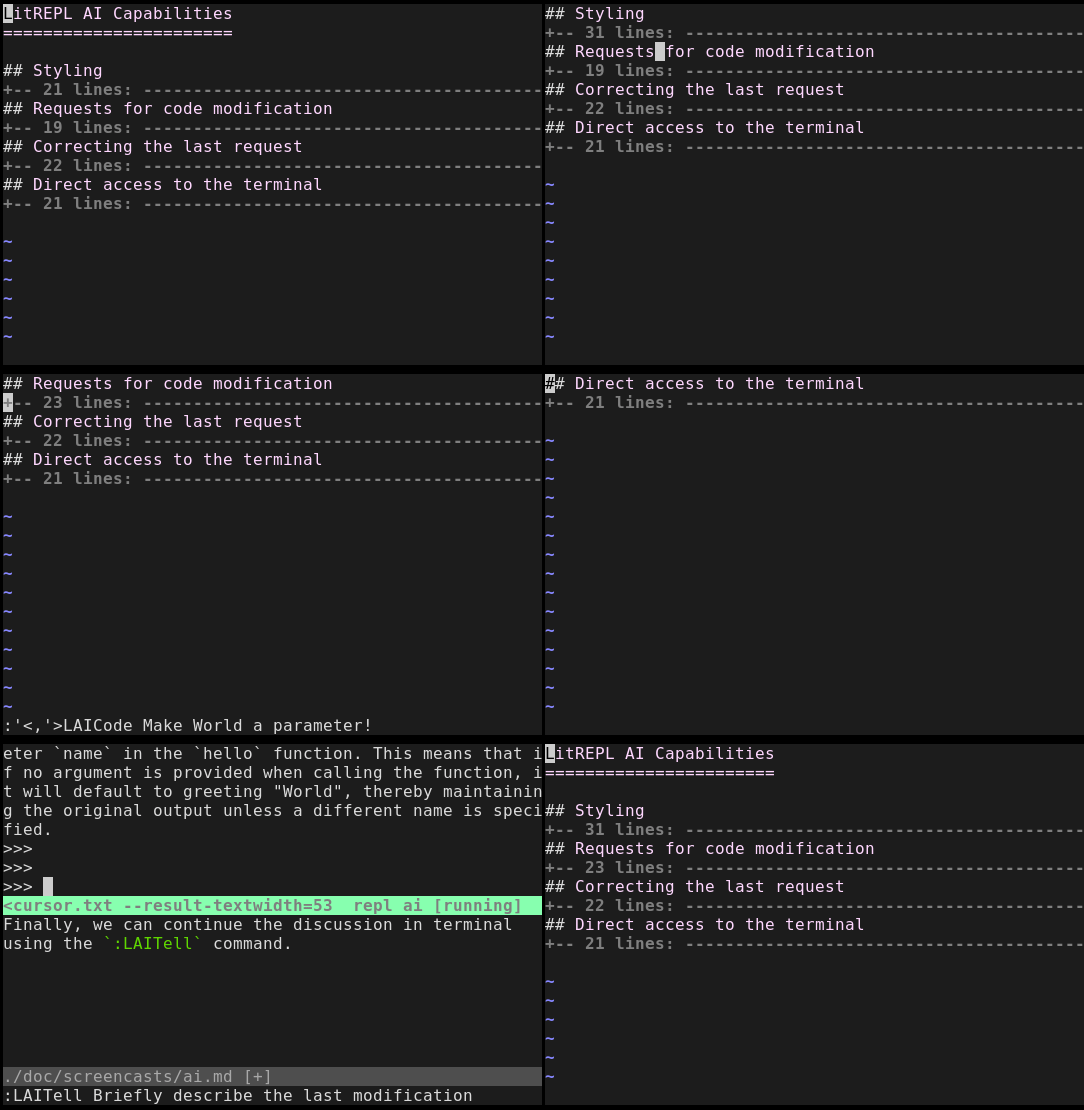
Vim, Calling for AI on a visual selection
The repository includes litrepl_extras.vim, which
defines extra tools for interacting with AI. These tools are based on the single
low-level LitReplAIQuery() function.
The function enables the creation of an AI chat query possibly incorporating the current file and any selected text. The AI model's response then returned alongside with the Litrepl error code.
Based on this function, the following two middle-level functions are defined:
LitReplTaskNew(scope, prompt)LitReplTaskContinue(scope, prompt)
Both functions take the prompt, produce the AI model response and decide where to insert it. However, the key difference is that the first function determines the target location based on user input (like cursor position or selection), while the second function re-applies the previously used position, allowing users to make changes easilly.
Finally, a number of high-level commands have been established. Each of these
commands receives an input string that directs the model on what action to take.
The user input can contain /S or /F tokens, which are replaced with the
values of the visual selection and the current file, respectively.
| Command | Description | Incorporates | Updates |
|---|---|---|---|
LAI |
Passes the prompt as-is | Input, Selection | Cursor, Selection |
LAICont |
Passes the prompt as-is | Input, Selection | Last |
LAIStyle |
Asks to improve language style | Input, Selection | Selection |
LAICode |
Asks to modify a code snippet | Input, Selection | Cursor, Selection |
LAITell |
Asks to describe a code snippet | Input, Selection | Terminal* |
LAIFile |
Asks to change a whole file | Input, Selection, File | File |
LAITellshows the response in the AI terminal instead of inserting it into the document.
As with the selection evaluation mode, the aicli interpreter stays
active in the background, maintaining the log of the conversation.
Direct interaction with the interpreter functions as expected. The LTerm ai
command opens the Vim terminal as usual, enabling communication with a model
through aicli text commands.
In-Depth Reference
Vim Commands and Command-Line Attributes
| Vim |
Command line |
Description |
|---|---|---|
:LStart [T] |
litrepl start [T] |
Start the background interpreter |
:LStop [T] |
litrepl stop [T] |
Stop the background interpreter |
:LRestart [T] |
litrepl restart [T] |
Restart the background interpreter |
:LStatus [T] |
litrepl status [T] <F |
Print the background interpreter status |
:LEval [N] |
lirtepl eval-sections L:C <F |
Evaluate the section under the cursor synchronously |
:LEval above |
lirtepl eval-sections '0..N' <F |
Evaluate sections above and under the cursor synchronously |
:LEval below |
lirtepl eval-sections 'N..$' <F |
Evaluate sections below and under the cursor synchronously |
:LEval all |
lirtepl eval-sections <F |
Evaluate all code sections in a document |
:LEvalAsync N |
lirtepl --timeout=0.5,0 eval-sections N <F |
Start or continue asynchronous evaluation of the section under the cursor |
:LInterrupt N |
lirtepl interrupt N <F |
Send SIGINT to the interpreter evaluating the section under the cursor and update |
:LEvalMon N |
while .. do .. done |
Start or continue monitoring asynchronous code evaluation |
| N/A | lirtepl eval-code <P |
Evaluate the given code verbatim |
:LTerm [T] |
lirtepl repl [T] |
Connect to the interpreter using GNU socat |
:LOpenErr |
litrepl ... 2>F |
View errors |
:LVersion |
litrepl --version |
Show version |
Where
TType of the interpreter:python,aiorsh(some commands also acceptall)FPath to a Markdown or LaTeX filePPath to a Python scriptNNumber of code section to evaluate, starting from 0.L:Cdenotes line:column of the cursor.
Command Line Arguments and Vim Variables
| Vim setting |
CLI argument |
Description |
|---|---|---|
set filetype |
--filetype=T |
Input file type: latex|markdown |
let g:litrepl_python_interpreter=B |
--python-interpreter=B |
The Python interpreter to use |
let g:litrepl_ai_interpreter=B |
--ai-interpreter=B |
The AI interpreter to use |
let g:litrepl_sh_interpreter=B |
--sh-interpreter=B |
The shell interpreter to use |
let g:litrepl_python_auxdir=D |
--python-auxdir=D |
The auxiliary files directory used by Python interpreter |
let g:litrepl_ai_auxdir=D |
--ai-auxdir=D |
The auxiliary files directory used by AI interpreter |
let g:litrepl_sh_auxdir=D |
--sh-auxdir=D |
The auxiliary files directory used by a shell interpreter |
let g:litrepl_workdir=D |
--workdir=D |
The auxiliary files directory used by AI interpreter |
let g:litrepl_debug=0/1 |
--debug=0/1 |
Print debug messages to the stderr |
let g:litrepl_timeout=FLOAT |
--timeout=FLOAT |
Timeout to wait for the new executions, in seconds, defaults to inf |
TType of the document:texormarkdown(the default).BInterpreter command to use,-orauto(the default).-value disabled this type of interpreters;autoasks litrep to guess the best available interpreter.DFilesystem directoryFLOATShould be formatted as1or1.1orinf. Note: command line argument also accepts a pair of timeouts.
Command Line Arguments Summary
usage: litrepl [-h] [-v] [--filetype STR] [--python-markers STR[,STR]]
               [--ai-markers STR[,STR]] [--sh-markers STR[,STR]]
               [--python-interpreter EXE] [--ai-interpreter EXE]
               [--sh-interpreter EXE] [--python-auxdir DIR] [--ai-auxdir DIR]
               [--sh-auxdir DIR] [--timeout F[,F]] [--propagate-sigint]
               [-d INT] [--verbose] [-C DIR] [--pending-exitcode INT]
               [--irreproducible-exitcode INT] [--exception-exitcode INT]
               [--foreground] [--map-cursor LINE:COL:FILE]
               [--result-textwidth NUM]

{start,stop,restart,status,parse,parse-print,eval-sections,eval-code,repl,interrupt,print-regexp,print-grammar,print-auxdir}
               ...

positional arguments:

{start,stop,restart,status,parse,parse-print,eval-sections,eval-code,repl,interrupt,print-regexp,print-grammar,print-auxdir}
                              Commands to execute
    start                     Start the background interpreter.
    stop                      Stop the background interpreters.
    restart                   Restart the background interpreters.
    status                    Print background interpreter's status.
    parse                     Parse the input file without futher processing
                              (diagnostics).
    parse-print               Parse and print the input file back
                              (diagnostics).
    eval-sections             Parse stdin, evaluate the specified sections (by
                              default - all available sections), print the
                              resulting file to stdout.
    eval-code                 Evaluate the code snippet.
    repl                      Connect to the background terminal using GNU
                              socat.
    interrupt                 Send SIGINT to the background interpreter.
    print-regexp              Print regexp matching start of code sections for
                              the given file type.
    print-grammar             Print the resulting grammar for the given
                              filetype.
    print-auxdir              Print the auxdir for the given interpreter type.

options:
  -h, --help                  show this help message and exit
  -v, --version               Print version.
  --filetype STR              Specify the type of input formatting
                              (markdown|[la]tex|auto).
  --python-markers STR[,STR]  TODO
  --ai-markers STR[,STR]      TODO
  --sh-markers STR[,STR]      TODO
  --python-interpreter EXE    Python interpreter command line, or `auto`.
                              Defaults to the LITREPL_PYTHON_INTERPRETER
                              environment variable if set, otherwise "auto".
                              Litrepl determines "python" or "ipython" type
                              according to the value.
  --ai-interpreter EXE        `aicli` interpreter command line or `auto`.
                              Defaults to the LITREPL_AI_INTERPRETER
                              environment variable if set, otherwise "auto".
  --sh-interpreter EXE        Shell interpreter command line or `auto`.
                              Defaults to the LITREPL_SH_INTERPRETER
                              environment variable if set, otherwise "auto".
  --python-auxdir DIR         This directory stores Python interpreter pipes.
                              It defaults to LITREPL_PYTHON_AUXDIR if set;
                              otherwise, it's created in the system's
                              temporary directory, named after the current
                              working directory.
  --ai-auxdir DIR             This directory stores AI interpreter pipes. It
                              defaults to LITREPL_AI_AUXDIR if set; otherwise,
                              it's created in the system's temporary
                              directory, named after the current working
                              directory.
  --sh-auxdir DIR             This directory stores AI interpreter pipes. It
                              defaults to LITREPL_SH_AUXDIR if set; otherwise,
                              it's created in the system's temporary
                              directory, named after the current working
                              directory.
  --timeout F[,F]             Timeouts for initial evaluation and for pending
                              checks, in seconds. If the latter is omitted, it
                              is considered to be equal to the former one.
  --propagate-sigint          If set, litrepl will catch and resend SIGINT
                              signals to the running interpreter. Otherwise it
                              will just terminate itself leaving the
                              interpreter as-is.
  -d INT, --debug INT         Enable (a lot of) debug messages.
  --verbose                   Be more verbose (used in status).
  -C DIR, --workdir DIR       Set the working directory before execution. By
                              default, it uses LITREPL_WORKDIR if set,
                              otherwise remains the current directory. This
                              affects the directory of a new interpreter and
                              the --<interpreter>-auxdir option.
  --pending-exitcode INT      Return this error code if whenever a section
                              hits timeout.
  --irreproducible-exitcode INT
                              Return this error code if a section outputs a
                              different result than the one that is already
                              present in the document.
  --exception-exitcode INT    Return this error code at exception, if any.
                              Note: this option might not be defined for some
                              interpreters. It takes affect only for newly-
                              started interpreters.
  --foreground                Start a separate session and stop it when the
                              evaluation is done. All --*-auxdir settings are
                              ignored in this mode.
  --map-cursor LINE:COL:FILE  Calculate the new position of a cursor at
                              LINE:COL and write it to FILE.
  --result-textwidth NUM      Wrap result lines longer than NUM symbols.
🏗️ Development Guidelines
This project uses Nix as its main development framework. The file flake.nix manages the source-level dependencies required by Nix, whereas default.nix specifies common build targets, including PyPI and Vim packages, demo Vim configurations, development shells, and more.
Building Targets
To build individual Nix expressions, execute the command nix build '.#NAME',
replacing NAME with the actual name of the Nix expression you want to build.
If the build is successful, Nix places the results of the last build in a
symbolic link located at ./result.
The list of Nix build targets includes:
litrepl-release- Litrepl script and Python liblitrepl-release-pypi- Litrepl script and Python libvim-litrepl-release- Vim with locally built litrepl pluginvim-litrepl-release-pypi- Vim with litrepl plugin built from PYPIvim-test- A minimalistic Vim with a single litrepl pluginvim-demo- Vim configured to use litrepl suitable for recording screencastsvim-plug- Vim configured to use litrepl via the Plug managershell-dev- The development shellshell-screencast- The shell for recording demonstrations, includesvim-demo.
See local.collection attribute-set in the default.nix for the
full list of defined targetr.
For example, to build a version of Vim pre-configured for demo, run
$ nix build '.#vim-demo'
$ ./result/bin/vim-demo  # Run the pre-configured demo instance of Vim
Development Environments and Setup
The default development shell is defined in the ./default.nix as a Nix
expression named shell which is the default name for development shells.
Running
$ nix develop
will ask Nix to install the development dependencies and open shell.
Tools for Screencast Recording
Another shell which might be useful is shell-screencast. This would build the
full set of Litrepl tools and makes sure that the screencasting software is
available. To enter it, specify its Nix-flake path as follows:
$ nix develop '.#shell-screencast'
In the opened shell, run the screencast.sh and wait a second, until the script
arranges demo and recorder wondows.
$ screencast.sh
screencast.sh accepts an optional parameter specifying the template file to
open for the recording session.
Common Development Scenarios
The top-level Makefile encodes common development scenarios:
[ LitREPL-DEV ] $ make help
make[1]: Entering directory '/home/grwlf/proj/litrepl.vim'
LitREPL is a macroprocessing Python library for Litrate programming and code execution
Build targets:
help:       Print help
test:       Run the test script (./sh/runtests.sh)
readme:     Update code sections in the README.md
wheel:      Build Python wheel (the DEFAULT target)
vimbundle:  Build Vim bundle
version:    Print the version
dist:       Build Python and Vim packages
upload:     Upload Python wheel to Pypi.org (./_token.pypi is required)
make[1]: Leaving directory '/home/grwlf/proj/litrepl.vim'
The runtests.sh script runs all tests by default, but accepts command-line
arguments for running specific tests.
[ LitREPL-DEV ] $ runtests.sh --help
Usage: runtest.sh [-d] [-i I(,I)*] [-t T(,T)*]
Arguments:
  -d                        Be very verbose
  -i I, --interpreters=I    Run tests requiring interpreters matching the grep expression I
                            Run -i '?' to list all available interpreters
  -t T, --tests=T           Run tests whose names match the grep expression T
                            Run -t '?' to list all available tests
  -p P, --python=P          Use this Python interpreter to run Litrepl
                            Run -p '?' to list available python interpreters
  -c FILE, --coverage=FILE  Collect coverage results into the FILE. Defaults to
                            `.coverage` if no tests or interpreters are
                            selected, otherwize disabled.
  -c -,    --coverage=-     Disable coverage.

Examples:
  runtests.sh -t '?' -i '?'
  runtests.sh -i ipython
  runtests.sh -t 'test_eval_code|test_status' -i python
🎥 Gallery
Basic usage (Show GIF)
AI capabilities (Show GIF)
Vimtex integration (Show Video)
We utilize LitRepl alongside the Vimtex plugin to edit and preview LaTeX documents instantly.
📊 Coverage report
coverage report --format=markdown -m
| Name | Stmts | Miss | Cover | Missing |
|---|---|---|---|---|
| python/litrepl/__init__.py | 34 | 12 | 65% | 24-29, 35-40 |
| python/litrepl/base.py | 558 | 46 | 92% | 48, 60, 78, 88, 137, 167, 206-212, 222, 228, 400, 411-412, 436-441, 449, 472, 498-499, 557, 614-615, 680-682, 726-735, 753-758 |
| python/litrepl/eval.py | 336 | 32 | 90% | 36, 39-40, 77-78, 91, 122, 148-149, 173-175, 190, 199, 274-280, 299-300, 318, 327, 352, 364-367, 380-381 |
| python/litrepl/interpreters/__init__.py | 0 | 0 | 100% | |
| python/litrepl/interpreters/aicli.py | 50 | 19 | 62% | 15-17, 37, 41-51, 60-66 |
| python/litrepl/interpreters/ipython.py | 32 | 1 | 97% | 70 |
| python/litrepl/interpreters/python.py | 22 | 1 | 95% | 38 |
| python/litrepl/interpreters/shell.py | 22 | 1 | 95% | 26 |
| python/litrepl/main.py | 206 | 47 | 77% | 22-24, 163, 166-169, 212, 221, 238-243, 245-247, 258-267, 280, 290-294, 303-311, 313-314, 320-321 |
| python/litrepl/revision.py | 1 | 1 | 0% | 2 |
| python/litrepl/semver.py | 1 | 1 | 0% | 2 |
| python/litrepl/types.py | 94 | 6 | 94% | 124, 129, 135, 138, 141, 144 |
| python/litrepl/utils.py | 97 | 6 | 94% | 37, 55, 129-132 |
| TOTAL | 1453 | 173 | 88% |
💡 Technical Insights
The following events should normally happen after users type the :LitEval1
command:
- On the first run, LitREPL starts the Python interpreter in the background. Its standard input and output are redirected into UNIX pipes in the current directory.
- LitREPL runs the whole document through the express Markdown/Latex parser determining the start/stop positions of code and result sections. The cursor position is also available and the code from the right code section can reach the interpreter.
- The process which reads the interpreter's response is forked out of the main LitREPL process. The output goes to the temporary file.
- If the interpreter reports the completion quickly, the output is pasted to the resulting document immediately. Otherwise, the temporary results are pasted.
- Re-evaluating sections with temporary results causes LitREPL to update these results.
🚫 Known Limitations
- Formatting: Nested code sections are not supported.
Formatting: Special symbols in the Python output could invalidate the document.- Interpreter: Extra newline is required after Python function definitions.
- Interpreter: Stdout and stderr are joined together.
Interpreter: Evaluation of a code section locks the editor.- Interpreter: Tweaking
os.ps1/os.ps2prompts of the Python interpreter could break the session. Interpreter: No asynchronous code execution.Interpreter: Background Python interpreter couldn't be interrupted
Related Tools and Projects
Edititng:
- https://github.com/lervag/vimtex (LaTeX editing, LaTeX preview)
- https://github.com/shime/vim-livedown (Markdown preview)
- https://github.com/preservim/vim-markdown (Markdown editing)
Code execution:
- Vim-medieval https://github.com/gpanders/vim-medieval
- Evaluates Markdown code sections
- Pyluatex https://www.ctan.org/pkg/pyluatex
- Magma-nvim https://github.com/dccsillag/magma-nvim
- Codi https://github.com/metakirby5/codi.vim
- Pythontex https://github.com/gpoore/pythontex
- Evaluates Latex code sections
- Codebraid https://github.com/gpoore/codebraid
- Vim-ipython-cell https://github.com/hanschen/vim-ipython-cell
- Vim-ipython https://github.com/ivanov/vim-ipython
- Jupytext https://github.com/goerz/jupytext.vim
- Alternative? https://github.com/mwouts/jupytext
- Ipython-vimception https://github.com/ivanov/ipython-vimception
Useful Vim plugins:
- https://github.com/sergei-grechanik/vim-terminal-images (Graphics in vim terminals)
Useful tools:
Considerations for Third-Party Tools
Release history Release notifications | RSS feed


Download files
Download the file for your platform. If you're not sure which to choose, learn more about installing packages.
Source Distribution
Built Distribution
Filter files by name, interpreter, ABI, and platform.
If you're not sure about the file name format, learn more about wheel file names.
Copy a direct link to the current filters
File details
Details for the file litrepl-3.13.0.tar.gz.
File metadata
- Download URL: litrepl-3.13.0.tar.gz
- Upload date:
- Size: 189.6 kB
- Tags: Source
- Uploaded using Trusted Publishing? No
- Uploaded via: twine/5.0.0 CPython/3.11.10
File hashes
| Algorithm | Hash digest | |
|---|---|---|
| SHA256 |
9e3a55f0e6583cb2d29383fdb3d4c6adfd87c0f1c61bb8d8b8aca15bacf8ef2a
|
|
| MD5 |
dd6377adb96499d89d41091066ede545
|
|
| BLAKE2b-256 |
c1344121d058b3b89b0e2e135ea89ea9d460b7b8d75fa35c28614a7dcf21dfba
|
File details
Details for the file litrepl-3.13.0-py3-none-any.whl.
File metadata
- Download URL: litrepl-3.13.0-py3-none-any.whl
- Upload date:
- Size: 46.1 kB
- Tags: Python 3
- Uploaded using Trusted Publishing? No
- Uploaded via: twine/5.0.0 CPython/3.11.10
File hashes
| Algorithm | Hash digest | |
|---|---|---|
| SHA256 |
2479e4cdf262467cc4926e0db0f2971a757dcfc2d3ad8ae521678cc367e5f96b
|
|
| MD5 |
f5216dc48f137b219fe4a2228ea5460c
|
|
| BLAKE2b-256 |
4ebcfa3bdf8d0ae4fc2365d8977cb283a7179a12847a3fdd115ce3fcd1120e2a
|






