
NOT1MM Logger

Project description
Not1MM





- Not1MM
- What and why is Not1MM
- What it is not
- What it probably never will be
- List of should be working contests
- Changes of note
- Running from source
- Various data file locations
- The database
- Station Settings dialog
- Adding a contest
- Selecting an added contest as the current contest
- Configuration Settings
- Hiding screen elements
- Editing macro keys
- cty.dat and QRZ lookups for distance and bearing
- Other uses for the call field
- Log Display
- Editing a contact
- Recalulate Mults
- Cabrillo
- ADIF
- Dupe checking
- CAT
- CW Keyer interface
What and why is Not1MM
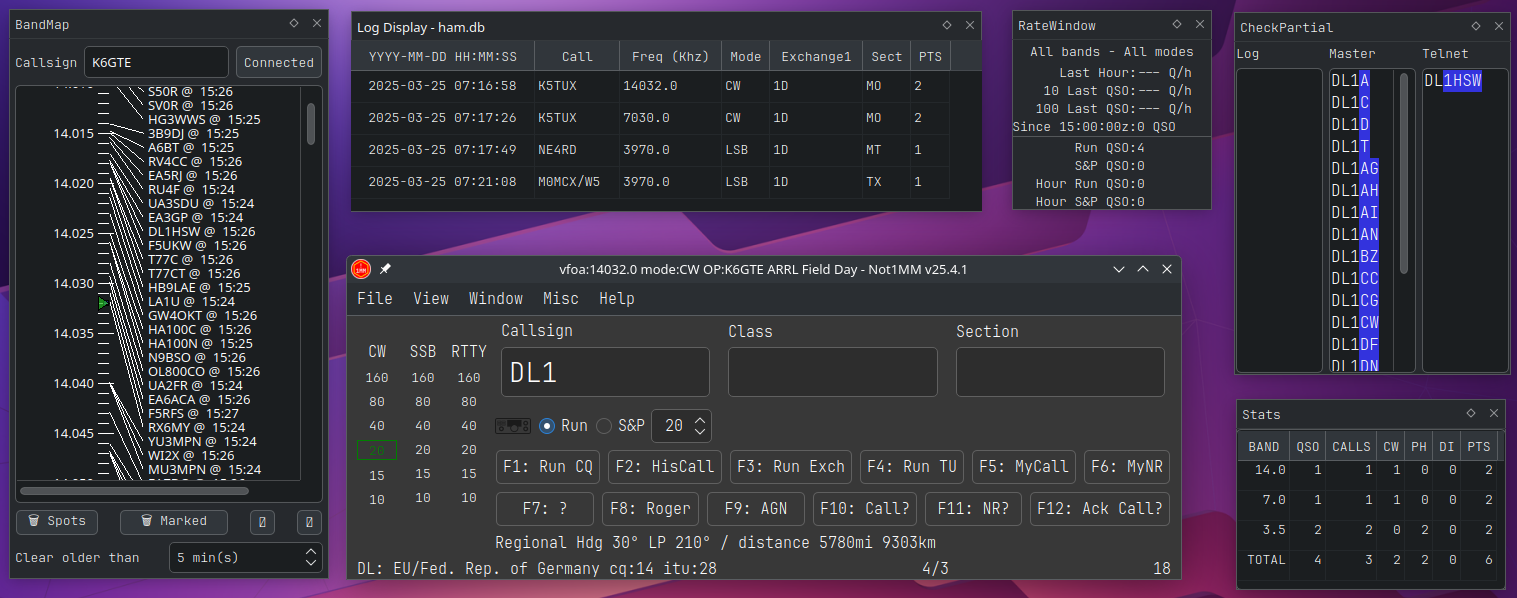
Not1MM's interface is a blantent ripoff of N1MM. It is NOT N1MM and any problem you have with this software should in no way reflect on their software.
If you use Windows(tm) you should run away from this and use someother program.
I personally don't. While it may be possible to get N1MM working under Wine, I haven't checked, I'd rather not have to jump thru the hoops.
Currently this exists for my own personal amusement. Something to do in my free time. While I'm not watching TV, Right vs Left political 'News' programs, mind numbing 'Reality' TV etc...
What it is not
Fully working.
The current state is "BETA". I've used it for CQ WPX SSB and JIDX CW, and was able to work contacts and submit a cabrillo at the end. I'll add contests as/if I work them.
What it probably never will be
Feature complete. I'm only one guy, and I'm not what you'd consider to be a contester. So new contests will be sparse.
List of should be working contests
- General Logging
- CQ WPX CW
- CQ WPX SSB
- CQ World Wide CW
- CQ World Wide SSB
- Japan International DX CW
- Japan International DX SSB
Changes of note
- [23-4-11] Add about dialog. Fix crash when previous working DB is erased. Add CQ WW CW and SSB. When entering station settings, after entering callsign and grid, the cqzone, ituzone, country, latitude and longitude will auto fill.
- [23-4-10] Added Configure Settings dialog. Added CW keyer and CAT control settings to Configure Settings dialog.
- [23-4-6] Added JIDX contest. Added {SNT} and {SENTNR} CW macros. Added a menu item to open then CW macros data file in your systems preferred text editor.
- [23-4-5] Fixed crash caused by lists not being lists. Filled out some existing code stubs in the Field Day plugin. Fixed log window not showing current contest Q's.
- [23-4-4] Current OP defaults to Station call if OPON not used. Text formatting of Station settings. Removed STX and SRX strings from General Logging ADIF. DB now operates on current contest Nr. Hide/Show band-mode frames.
- [23-4-3] Added dialog to select from defined contests in the active database. Force Station settings then new contest dialog on new DB creation. Add Greneral Logging contest type. Added other Cabrillo tags.
March 2023
- [23-3-31] Now saving station settings in the contest database.
- [23-3-30] Added Open new and Open existing database
- [23-3-29] Added a new contest dialog.
- [23-3-27] Add menu item to recalculate mults.
- [23-3-27] Fix cursor behaviour when editing text in callsign field.
- [23-3-25] Fix minimum call length. Fix cabrillo tag. Add adif output.
- [23-3-24] Added dupe checking. Added CAT check for flrig or rigctld. Added online flag for flrig.
- [23-3-23] Added most of Cabrillo generation. Plan to test it this weekends CQ WPX SSB.
- [23-3-22] Add prefill of serial nr. set OP call on startup. Set IsMultiplier1 new unique wpx. Add OP and contest name to window title. and stuff.
- [23-3-21] Worked on CQ WPX SSB plugin.
- [23-3-20] Added a contact edit dialog. RightClick to edit contact. Changed placeholder text color in settings dialog. Hooked up CW speedchange widget. PgUp/PgDn to change speed.
- [23-3-17] Added multicast UDP messages to update the log window when new contact made. You can now edit existing contacts in the log window. You can't delete them yet. Got rid of watchdog. Isolated common multicast code to it's own class.
- [23-3-15] Added a rudimentary log view window.
- [23-3-10] Started work on saving contacts to the DB. Added a claculate_wpx_prefix routine.
- [23-3-9] Placed network call lookup in a thread. Display freq/mode for non CAT radios. Hooked up the CW macros to cwdaemon.
- [23-3-8] Band/Frequency/Mode indicators. Direct frequency/mode entry in call field.
- [23-3-7] Changed dxlog table column names.
- [23-3-1] Add shift tab for field movement.
February 2023
- [23-2-23] Dialogs now do darkmode, Add settings dialog. App remembers window size and location.
- [23-2-22] Added cty.dat file.
- [23-2-21] Added edit macro dialog.
- [23-2-20] Save view states. fixed debug messages. Started coding plugins/stubs.
- [23-2-15] Added qss stylesheet. Connected Run and S&P radio buttons. Reads in cwmacros.
- [23-2-12] Added View menu to show/hide macro buttons, command buttons, and the band/mode indicator on the left. Added OpOn dialog. Added a dark mode. QRZ lookup added but needs work.
- [23-2-9] Initial post and name squatting.
Running from source
Since this is packaged for PyPi, if you want to work on your own source branch, after cloning from github you would:
pip install --upgrade pip
pip install setuptools
pip install build
source rebuild.sh
from the root directory. This installs a build chain and a local editable copy of not1mm.
There's two ways to launch the program from the local editable copy.
You can either be in the root of the source directory and type:
python not1mm
or be in some other directory and just type:
not1mm
Various data file locations
Data
If your system has an XDG_DATA_HOME environment variable set, the databases can be found there. Otherwise they will be found at yourhome/.local/share/not1mm
Config
Configuration file(s) can be found at the location defined by XDG_CONFIG_HOME. Otherwise they will be found at yourhome/.config/not1mm
The database
Why
The database holds... wait for it... data... I know shocker right. A database can hold one or many contest logs. It also holds the station information, everything shown in the Station Settings dialog. You can have one database for the rest of your life. Filled with hundreds of contests you've logged. Or, you can create a new database to hold just one contest. You do You Boo.
The first one
On the initial running, a database is created for you called ham.db. This, and all future databases, are located in the data directory mentioned above.
Why limit yourself
You can create a new database by selecting File > New Database from the main window, and give it a snazzy name. Why limit yourself. Hell, create one every day for all I care. You can manage your own digital disaster.
Revisiting an old friend
You can select previously created databases by selecting File > Open Database.
Station Settings dialog
After initial run of the program or creating a new database you will need to fill out the Station Settings dialog that will pop up.
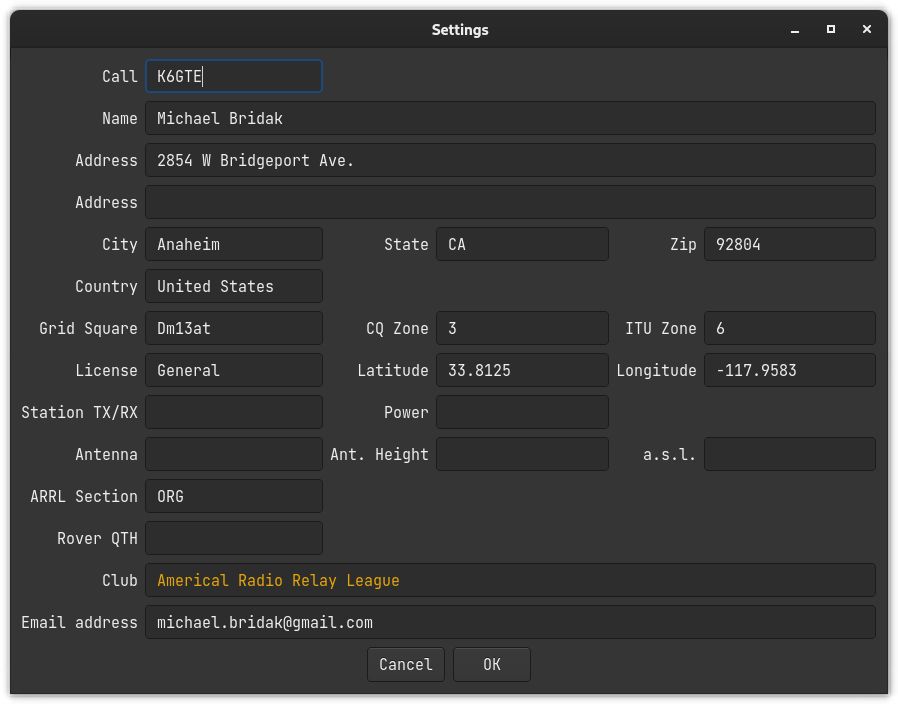
You can fill it out if you want to. You can leave our friends behind. 'Cause your friends don't fill, and if they don't fill. Well, they're no friends of mine.
You can fill. You can fill. Everyone look at your keys.
Changing station information
Station information can be changed any time by going to File > Station Settings and editing the information.
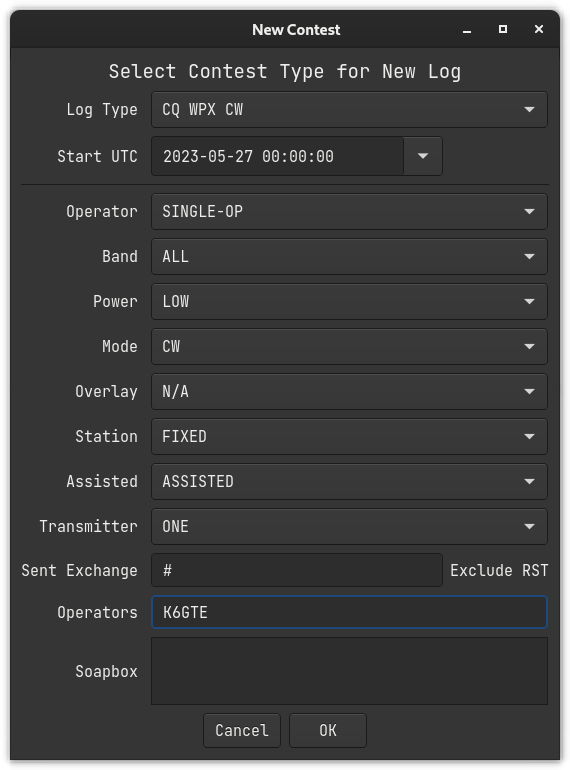
Adding a contest
Select File > New Contest
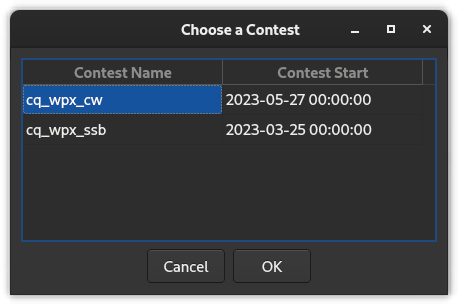
Selecting an added contest as the current contest
Select File > Open Contest
Configuration Settings
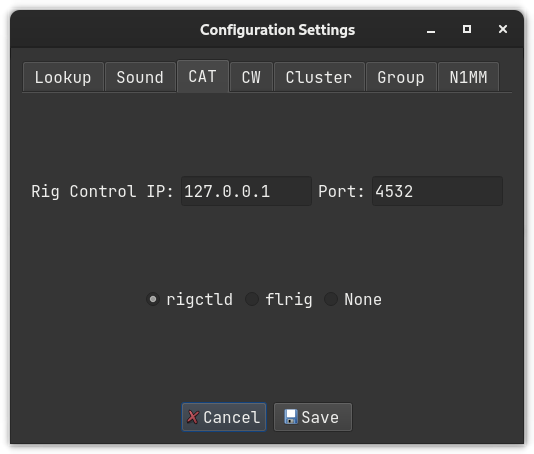
Select File > Configuration Settings
Hiding screen elements
You can show or hide certain buttons/indicators by checking and unchecking their boxes under the view menu. You can then resize the screen to make it more compact.
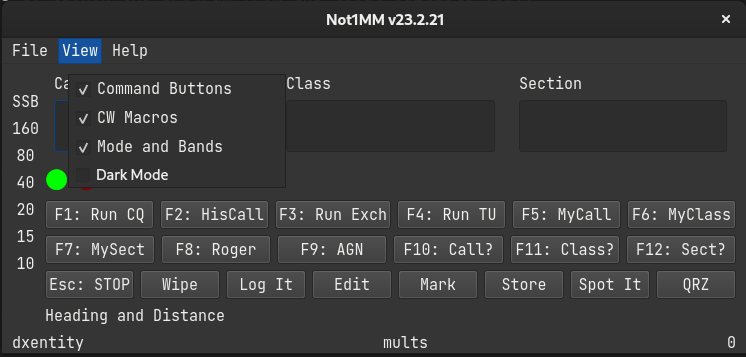
The your choices will be remembered when you relaunch the program.
Editing macro keys
To edit the CW macros, choose File > Edit CW Macros. This will open your systems registered text editor with current macros loaded. When your done just save the file and close the editor.
You can include a limited set of substitution instructions.
- {MYCALL} Sends the station call.
- {HISCALL} Send what's in the callsign field.
- {SNT} Sends 5nn
- {SENTNR} Sends whats in the SentNR field.
cty.dat and QRZ lookups for distance and bearing
When a callsign is entered, a look up is first done in a cty.dat file to determin the country of origin, geographic center, cq zone and ITU region. Great circle calculations are done to determin the heading and distance from your gridsquare to the grographic center. This information then displayed at the bottom left.

After this, a request is made to QRZ for the gridsquare of the callsign. If there is a response the information is recalculated and displayed. You'll know is this has happened, since the gridsquare will replace the word "Regional".

Other uses for the call field
- [A Frequency] You can enter a frequency in kilohertz. This will change the band you're logging on. If you have CAT control, this will change the frequency of the radio as well.
- [CW, SSB, RTTY] You can set the mode logged. If you have CAT control this will also change the mode on the radio.
- [OPON] Change the operator currently logging.
You must press the SPACE bar after entering any of the above.
Log Display
The Log display gets updated automatically when a contact is entered. The top half is a list of all contacts.
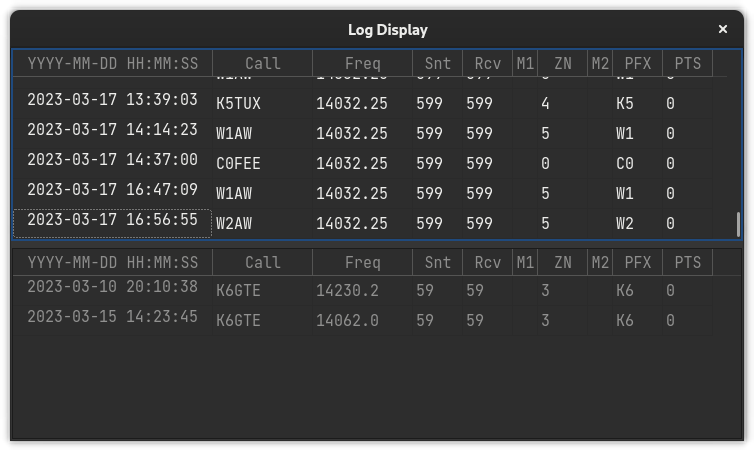
The bottom half of the log displays contacts sorted by what's currently in the call entry field.
Editing a contact
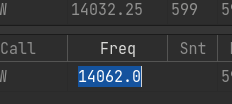
You can double click a cell in the log window and edit its contents.
You can also Right-Click on a cell to bring up the edit dialog.
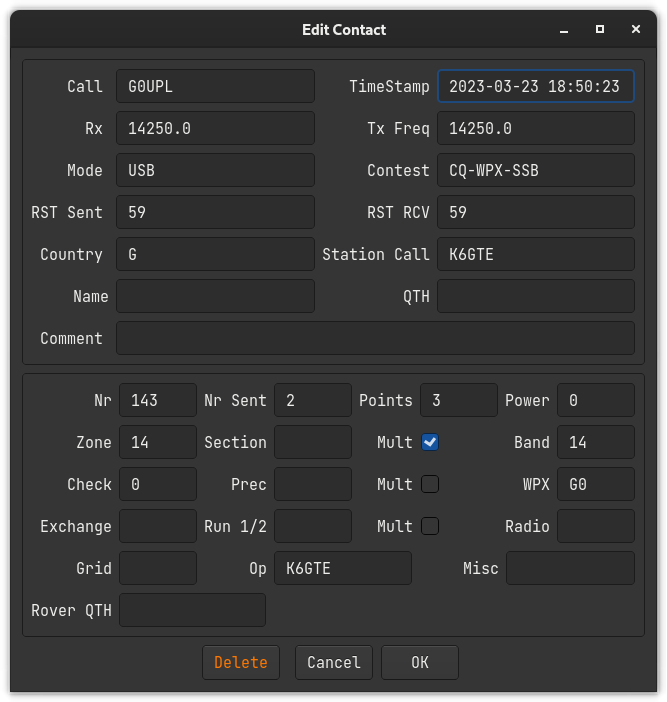
You can not directly edit the multiplier status of a contact. Instead see the next section on recalculating mults. If you change the callsign make sure the WPX field is still valid.
Recalulate Mults
After editing a contact and before generating a Cabrillo file. There is a Misc menu option that will recalculate the multipliers incase an edit had caused a change.
Cabrillo
Click on File > Generate Cabrillo
The file will be placed in your home directory. The name will be in the format of:
StationCall_ContestName.log
So for me it would be:
K6GTE_CQ-WPX-SSB.log
ADIF
File > Generate ADIF
Boom... ADIF
StationCall_ContestName.adi
Dupe checking
Added dupe checking. Big Red 'Dupe' will appear if it's a dupe...
CAT
Go to File > Configuration Settings, You will find a CAT TAB. You can choose either rigctld normally with an IP of 127.0.0.1 and a port of 4532. Or flrig, IP normally of 127.0.0.1 and a port of 12345. None is always an option, but is it really?
CW Keyer interface
Go to File > Configuration Settings, You will find a CW TAB. There are three options. cwdaemon, IP 127.0.0.1, port 6789. pywinkeyer, IP 127.0.0.1, port 8000. And None if you want to Morse it like it's 1899.
Release history Release notifications | RSS feed


Download files
Download the file for your platform. If you're not sure which to choose, learn more about installing packages.
Source Distribution
Built Distribution
Filter files by name, interpreter, ABI, and platform.
If you're not sure about the file name format, learn more about wheel file names.
Copy a direct link to the current filters
File details
Details for the file not1mm-23.4.12.tar.gz.
File metadata
- Download URL: not1mm-23.4.12.tar.gz
- Upload date:
- Size: 523.4 kB
- Tags: Source
- Uploaded using Trusted Publishing? No
- Uploaded via: twine/4.0.2 CPython/3.11.2
File hashes
| Algorithm | Hash digest | |
|---|---|---|
| SHA256 |
a737b5de98c4c1721e92d9d1e9df8b6f9e2edbe2fb65d4754e0bb92bbc695975
|
|
| MD5 |
f8533b5996b0f5c9974e4d6fd41455b9
|
|
| BLAKE2b-256 |
27d43794e5b1da7ce9d6bb6ee5e49fbdc68864df44a4af7d1173f4dc4c1f3723
|
File details
Details for the file not1mm-23.4.12-py3-none-any.whl.
File metadata
- Download URL: not1mm-23.4.12-py3-none-any.whl
- Upload date:
- Size: 560.5 kB
- Tags: Python 3
- Uploaded using Trusted Publishing? No
- Uploaded via: twine/4.0.2 CPython/3.11.2
File hashes
| Algorithm | Hash digest | |
|---|---|---|
| SHA256 |
88ee1799766ff2e713563801ba872b7138d5a944890b7b2afd3bcffe4220dc73
|
|
| MD5 |
15d1d9581ddb94ad63d2731237a125a8
|
|
| BLAKE2b-256 |
d7423f5dac14bf8565da5f58c1721bf74de6405d0b836f098d09b2a8735ca301
|






